IPTV Smarters Pro — Install on FireStick, Android & iOS (2025)
Learn how to install IPTV Smarters Pro on FireStick, Android TV, and iOS devices. Complete step-by-step guide with screenshots for 2025.
In this guide, I'll show you how to install IPTV Smarters Pro on FireStick. The steps will work for all Fire TV devices, including FireOS Smart TV, Fire TV Cube, FireStick HD, FireStick 4K, and FireStick 4K Max. The post also covers quick methods for installing IPTV Smarters Pro on Android TV Boxes, Smart Android TVs, and iOS devices.
What's IPTV Smarters Pro?
IPTV Smarters Pro, also known as Smarters Pro, is an IPTV player that enables you to stream content from IPTV subscriptions. It is also an IPTV management service, similar to Smart IPTV.
Unlike Smart IPTV, which requires a one-time activation fee, IPTV Smarters provides all the essential services for free. However, to access additional features, you'll need to purchase the paid version. IPTV Smarters Pro does not offer IPTV services itself, such as hosting channels or providing playlists.
You will need to use the login credentials of another IPTV service. You must already have an IPTV service provider subscription to use IPTV Smarters on FireStick and other devices.
IPTV Smarters works only with IPTV services that support M3U playlists or have an Xtream Codes API. The most significant advantage of IPTV Smarters is that it allows logging in to multiple IPTV subscriptions.
Lastly, IPTV Smarters allows you to install and use EPG if included in your subscription plan.
Quick Features of IPTV Smarters
Here are some important points:
- IPTV Smarters does not host channels. Its interface only allows you to access channels from other IPTV service providers.
- You MUST have a subscription from at least one IPTV service provider to use IPTV Smarters.
- To log in to IPTV Smarters, use your service provider's M3U playlist URL or Xtream Codes API.
- IPTV Smarters is a great way to access multiple IPTV subscriptions from one place, without installing individual apps.
How to Install IPTV Smarters Pro on FireStick (Updated Nov 04, 2025)
As mentioned, IPTV Smarters Pro is not available on the Amazon App Store. Therefore, we need to sideload it from an external website. Before doing so, we must prepare the FireStick to install an app from an unknown source.
Prepare Fire TV to Sideload IPTV Smarters Pro
By default, FireStick doesn't allow installing unknown apps. To sideload a third-party app, you must disable the restriction. Besides, you also need a special app called the Downloader app to download apps from external sites. You can get it from the Amazon Store.
Learn more in our guide on sideloading apps on FireStick with Downloader.
Here are the quick steps:
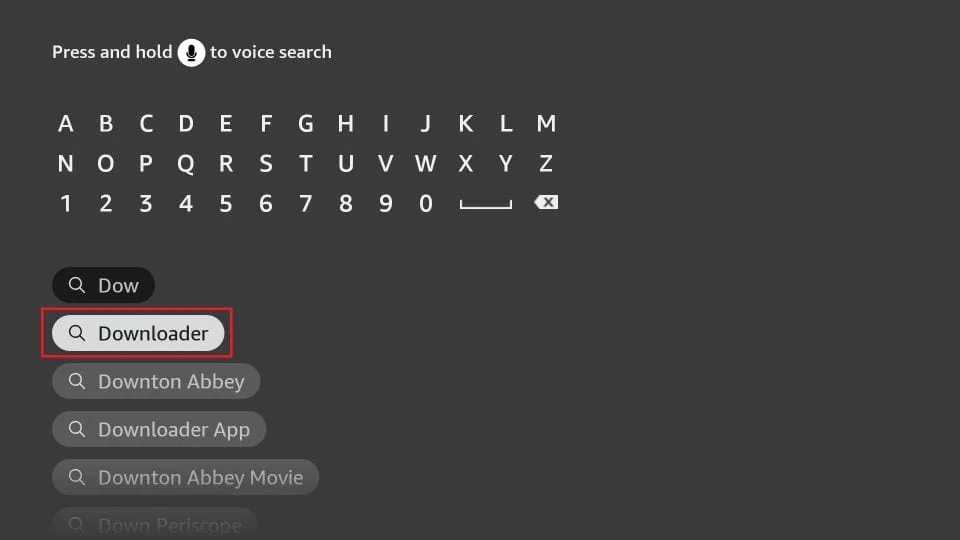
1. Click the Magnifying Glass > Search option on FireStick's home screen. Type Downloader in the search bar. When the Downloader option appears in the search results, click it. On the following screen, choose the Downloader icon to download and install the app.
2. Click Settings>My Fire TV>Developer options.
You will see one of the following two options depending on your FireStick device version:
- Option 1 (new devices) - Install Unknown Apps: Click it and proceed to the next step to enable Downloader.
- Option 2 (old devices) - Apps from Unknown Sources: Click this option and then click Turn On on the following prompt. Skip the next step.
Note: If you do not see Developer Options, go to Settings > My Fire TV > About. Now, select Fire TV Stick and click it 7 times to enable Developer Options. If you're still not sure how to do it, here's a step-by-step guide to enable developer options.
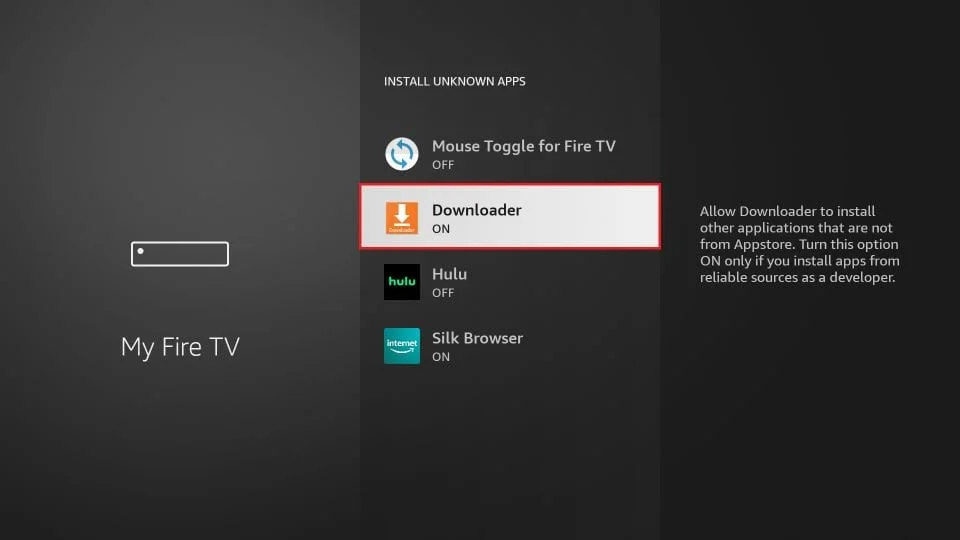
With this, you have configured the FireStick settings to allow installing IPTV Smarters and other third-party apps.
Sideload IPTV Smarters Pro APK
Here are the steps:
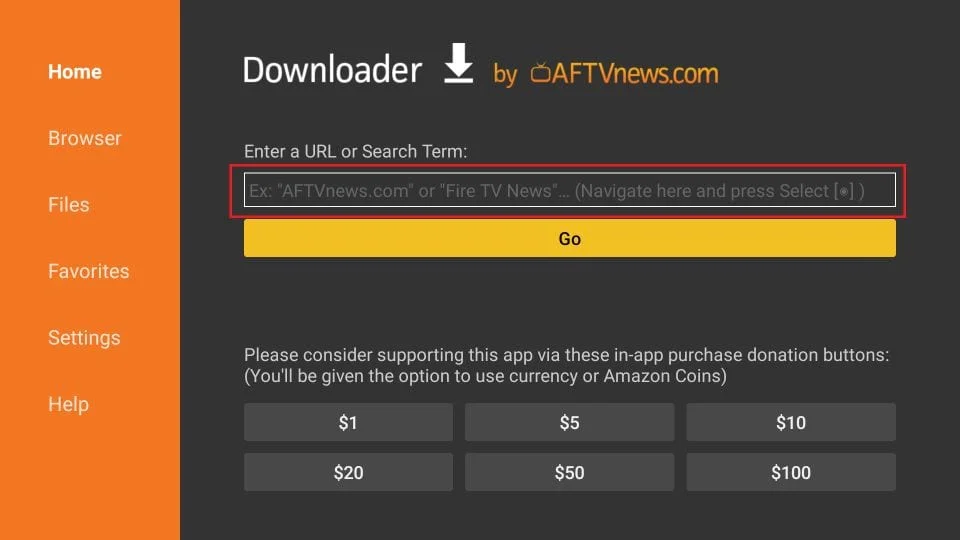
1. Open the Downloader app. Click the URL text box on the right side (make sure the Home option in the left menu is selected).
Note: When you run this app for the first time, a set of prompts will appear. Dismiss them until you see the following screen.
2. Enter the following code: 6468112 and click GO. Then click the download link on the page that loads.
3. Wait a minute or two until the IPTV Smarter downloads onto your device.
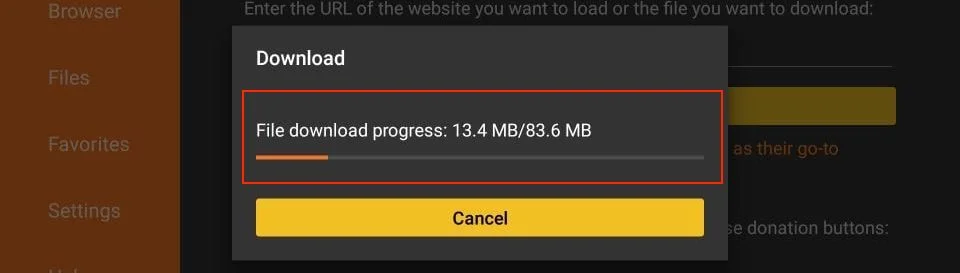
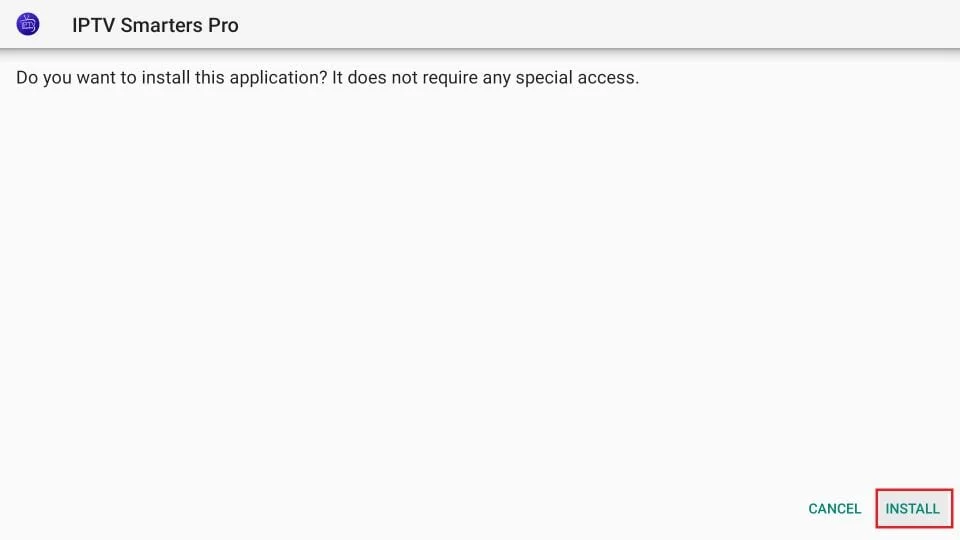
4. After the download is completed, the Downloader app will run the APK file, and the installation will start. Click Install.
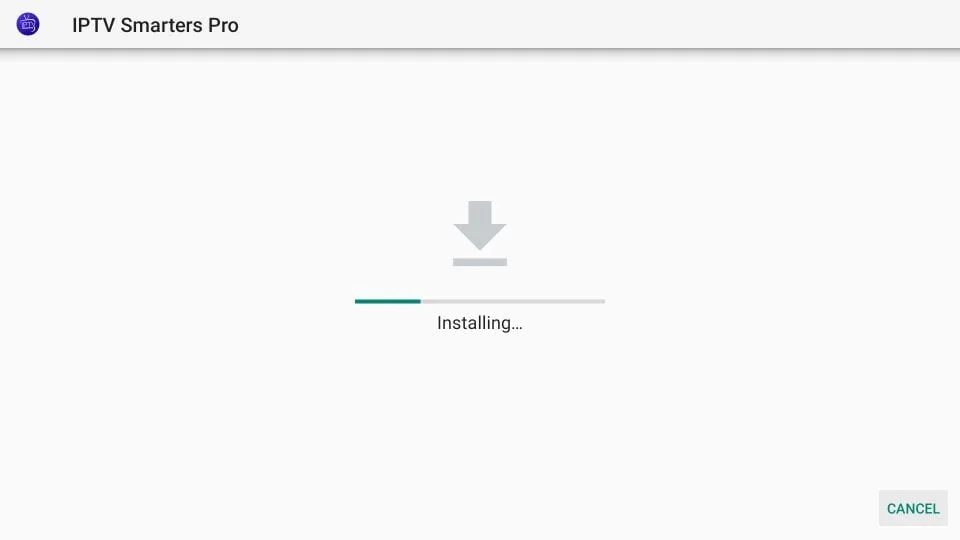
5. Wait for the installation to finish.
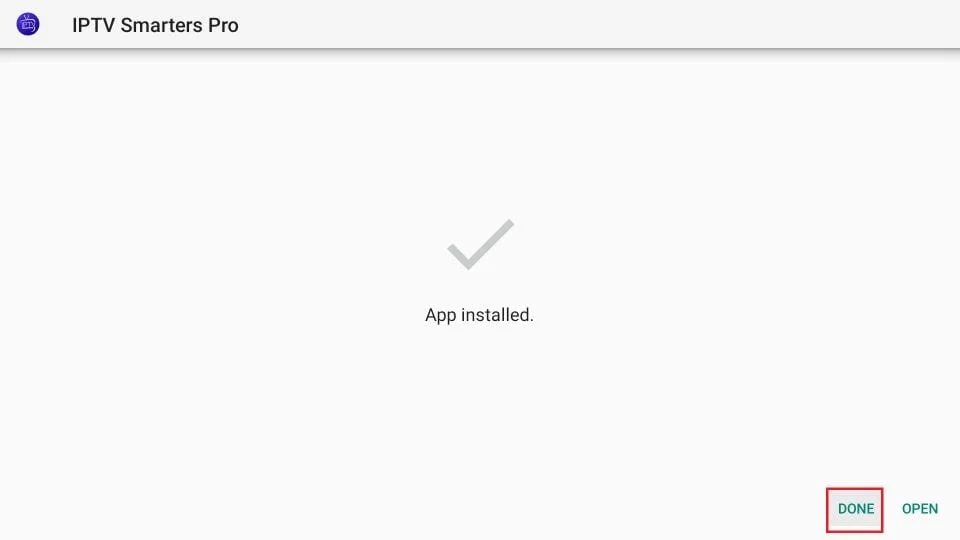
6. The installation is concluded, and the app installation notification appears. You may now click OPEN to start using IPTV Smarters. I recommend selecting DONE to delete the APK file and free up space on the FireStick storage.
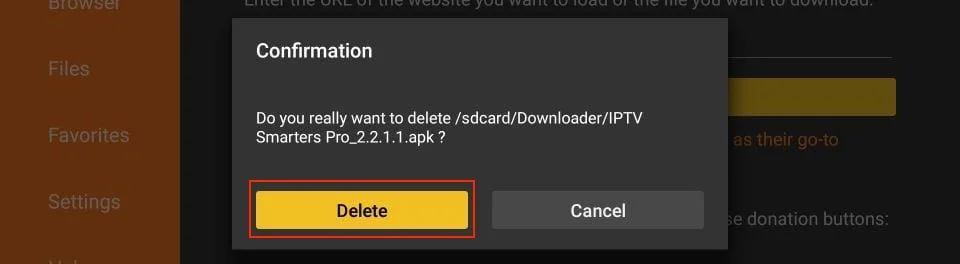
7. If you click DONE above, you will return to the Downloader interface. Click Delete.
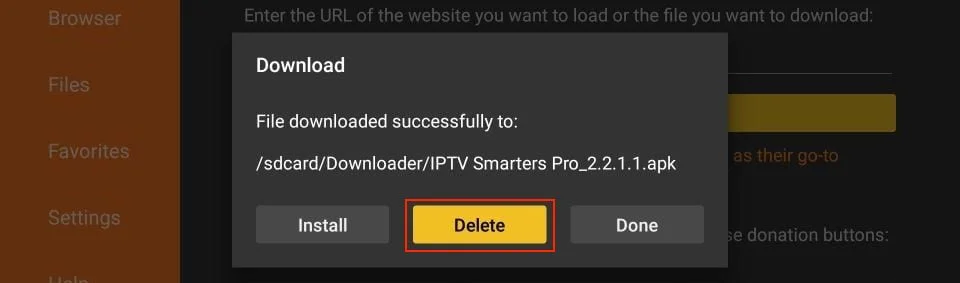
8. Again, click Delete.
You now have the IPTV Smarters app on FireStick.
How to Use IPTV Smarters on FireStick
If you intend to use IPTV Smarters frequently, I recommend creating a home screen shortcut for the app.
IPTV Smarters does NOT include any channels. It is simply a media player that acts as a facilitator and does not host or provide any content of its own. Instead, it organizes and plays only the channels provided by IPTV service providers. Therefore, you need an IPTV subscription to watch content on IPTV Smarters. Otherwise, it is of no use.
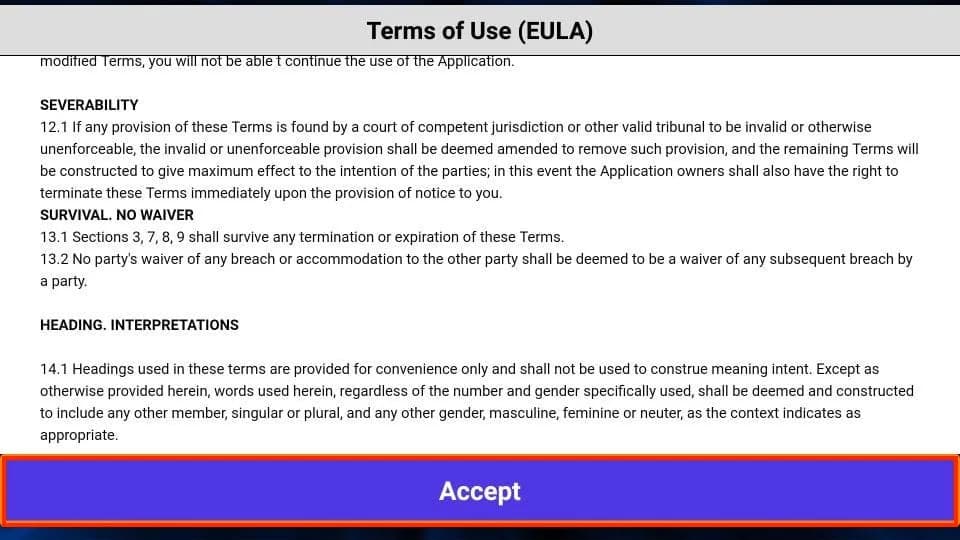
When you run the IPTV Smarters app for the first time, the Terms of Use will be the first window. Scroll down and click Accept.
You'll see this window. This is the IPTV Smarters Pro home screen.
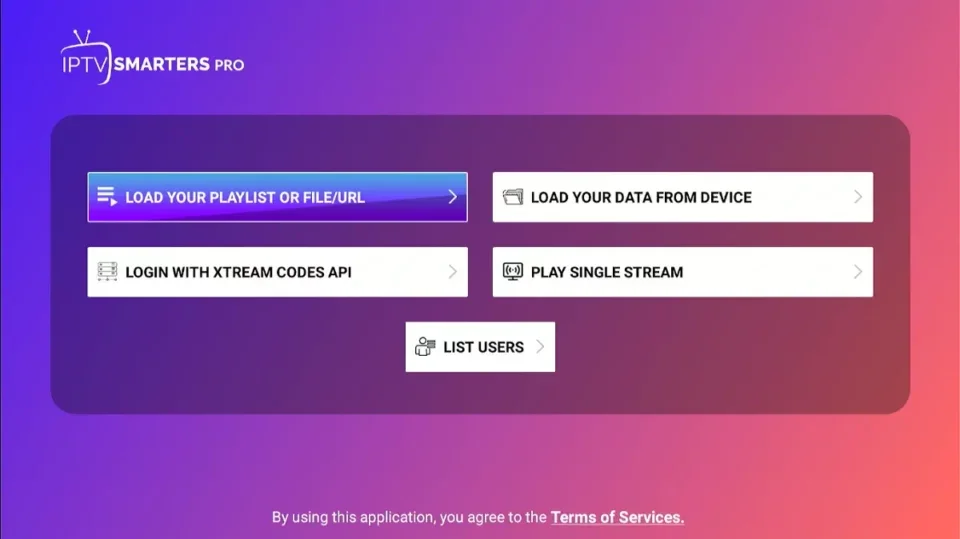
You can sign in to your IPTV service on IPTV Smarters in two ways:
- Load Your Playlist or File/URL
- Login with Xtream Codes API
Load Your Playlist or File/URL
Your IPTV service MUST support M3U playlists for use with IPTV Smarters. Not all IPTV services do.
To get started, click Load Your Playlist or File URL.
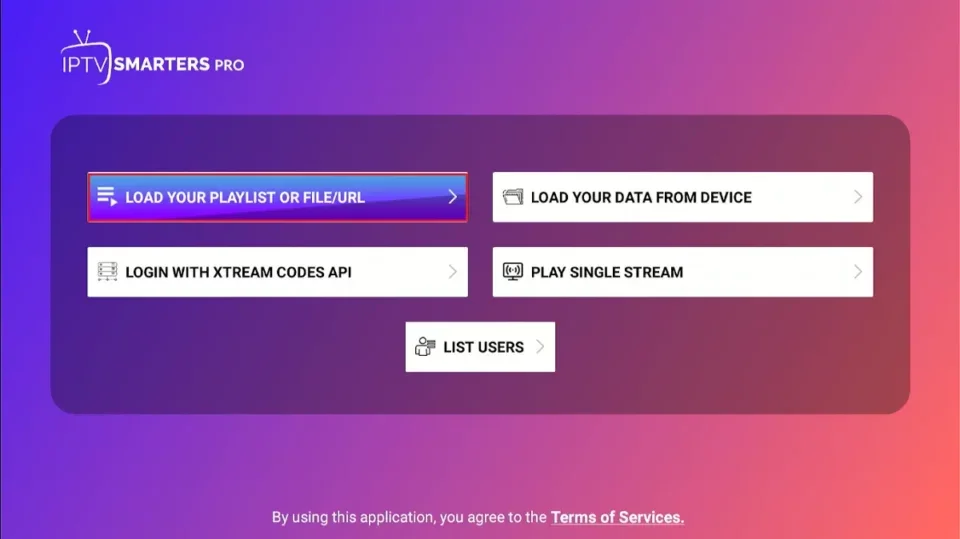
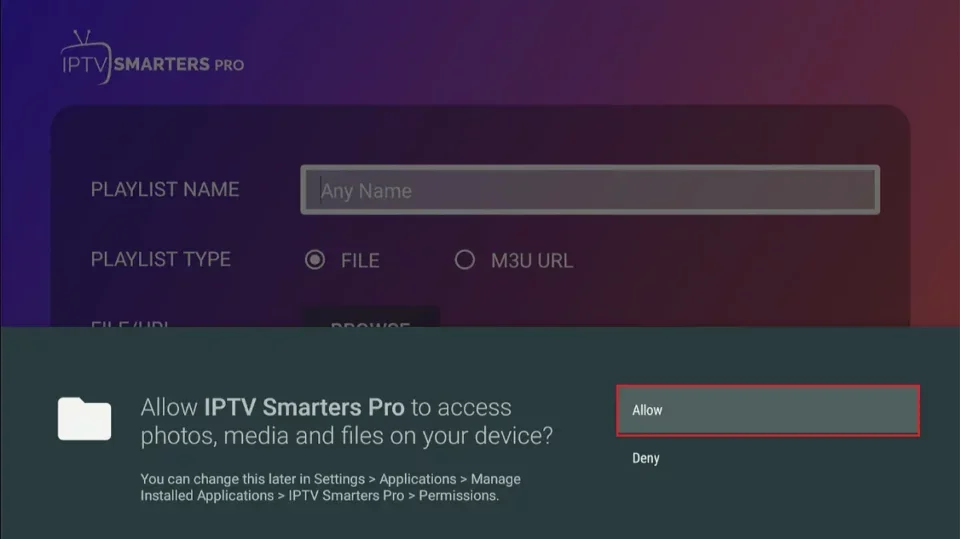
The app may request permission when you select the "Load Your Playlist" or "File/URL" option. Click Allow.
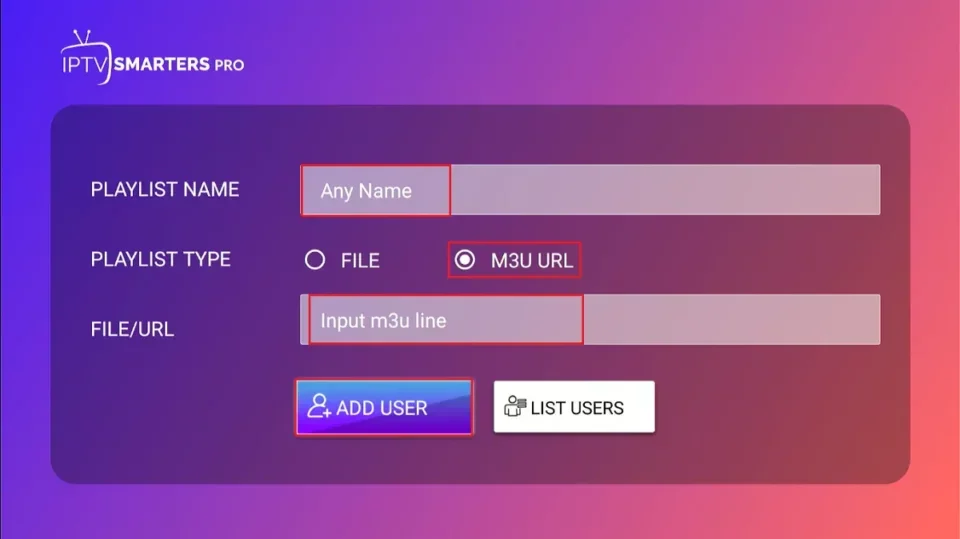
Here is the screen where you can enter the M3U playlist link. For Playlist Type, choose the M3U URL option. In the Playlist Name section, type any name you like. Next, in the File/URL section, type the M3U URL. Then, click the Add User button.
Log in with the Xtream Codes API
M3U playlist URLs are often long and difficult to type into the app using the FireStick remote. Therefore, I recommend using the Xtream Codes API instead. They are shorter and easier to type. However, Xtream Codes are no longer working, and I am unsure if the API Codes will work.
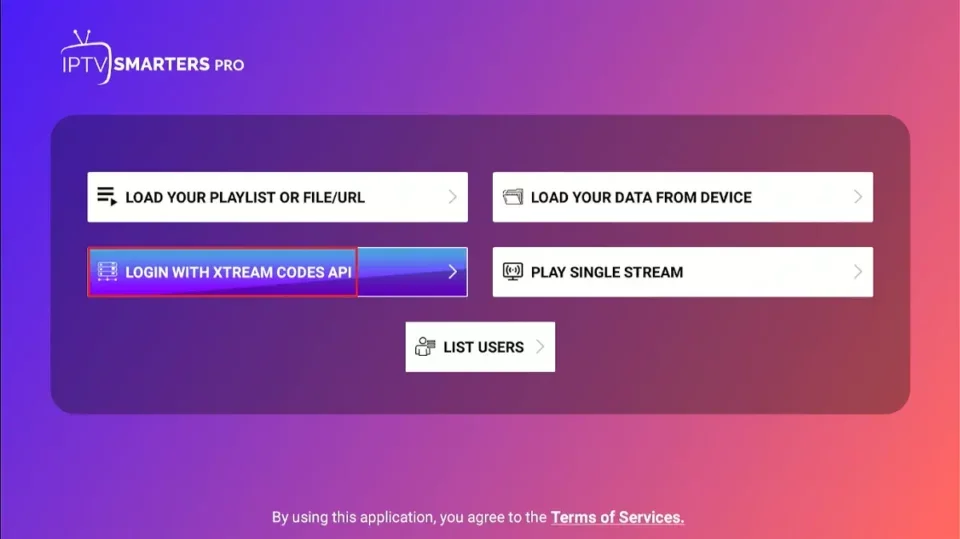
To get started, click Login with Xtream Codes API.
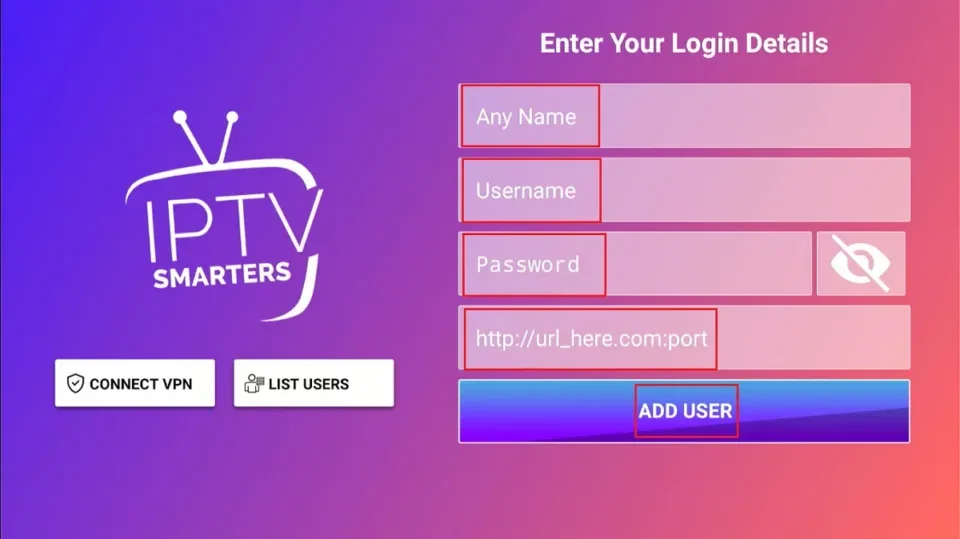
When you click Login with Xtream Codes API, you will see a window where you can enter your details. Enter your name, username, password, and URL, and then click Add User.
How to Install IPTV Smarters on Android Mobiles, Android TV Boxes, and Android Smart TVs
You can install IPTV Smarters Pro from the Google Play Store on Android Smartphones, Tablets, TVs, and TV Boxes. It goes by the name – Smarters Pro.
How to Install IPTV Smarters on iOS (iPhone, iPad, and iPod Touch)
IPTV Smarters is also officially available on the Apple App Store. Follow the steps below to install the app on iOS devices:
- Open the Apple App Store on your device.
- Look up Smarters Pro.
- Install Smarters Pro following the onscreen instructions.
You can log in to the IPTV Smarters app on FireStick or Android devices using your IPTV service credentials.
Frequently Asked Questions
Is IPTV Smarters Pro available on the Google Play Store?
Yes, it goes by the name Smarters Pro.
Do I need to purchase an IPTV service to use IPTV Smarters Pro?
Since IPTV Smarters Pro doesn't host any channels or content, it acts as an IPTV management service. Therefore, to use IPTV Smarters Pro, you must be subscribed to at least one IPTV service.
Is IPTV Smarters Free?
Yes, IPTV Smarters Pro is free to download and use.
Does IPTV Smarters offer built-in channels or host IPTV content?
No, IPTV Smarters does not offer built-in channels or host any IPTV content. It is purely a media player designed to stream content from IPTV services that users provide through their own playlists or subscriptions.
Wrapping Up
That's how you install and use IPTV Smarters Pro on FireStick. The IPTV player is free and lets you add, manage, and play live TV channels from your IPTV subscription. Have you installed the app on your device? Share your experiences and questions in the comment section below!